Getting Started
This page does one thing: get you from downloading Nephele to quickly finding out whether it fits into your illustration workflow.
Tip
You can try it free first. Downloading and the first run don't require payment; once you log in you get a daily cloud AI trial quota, and the local tools can be run right away too.
Before you download
These few items are all you need to check:
| Item | Requirement |
|---|---|
| OS | Windows 10 / 11 64-bit |
| RAM | 8 GB minimum, 16 GB recommended |
| Disk | 2 GB free for the base installation; 4 GB recommended |
| Network | Required for first launch, login, and cloud AI features |
| GPU | DirectX 11 or OpenGL 3.3+ |
Local models, assets, and process recordings need additional space.
The installer is about 300 MB. The AI image models (auto-tagging, Find Similar, semantic search, etc.) download on demand at install time or first use, so you can fetch only the parts you need.
Install
- Download the latest
NepheleWorkshop-Setup-<version>.exefrom the home page. - Run the installer, pick a language (中文 / English), and follow the wizard.
- Launch it from the desktop shortcut, the Start menu, or
Win + R→NepheleWorkshop.
Nephele installs to %LOCALAPPDATA%\Programs\NepheleWorkshop and needs no administrator rights. To uninstall, find "Nephele Workshop" under Windows Settings → Apps, or "Add/Remove Programs" in the Control Panel.
If Windows or your browser warns you
The beta hasn't purchased a commercial code-signing certificate yet, so both your browser and Windows may warn about the installer. These are reputation warnings, not virus reports — as long as the file came from an official address below, follow the prompt and carry on.
While downloading: the browser says the file "isn't commonly downloaded"
| Browser | What to do |
|---|---|
| Edge | Open your downloads (Ctrl + J) → the more-actions menu beside the file → Keep → Keep anyway |
| Chrome | Ctrl + J → the … on the download item → Download suspicious file (older versions say "Keep" or "Keep anyway") |
| Firefox | Click the downloads arrow in the toolbar → the arrow beside the warning → Allow Download; you can also right-click the item → Allow Download |
Edge's third step, "Report this file as safe", is optional and only for confirmed false positives. Reporting does not keep the file, and you do not need to wait for a review.
When you run the installer: Windows says "Windows protected your PC"
- Click More info.
- Click Run anyway.
Warning
Both steps above cover reputation warnings such as "isn't commonly downloaded". If a specific virus or Trojan is named (for example Trojan-Downloader.Win32.…), stop and contact us — that is a different situation, not a keep-anyway one.
Download only from these two addresses; they serve identical files:
https://nephele.arisfusion.comhttps://nephele.creatoraris.com(China mirror)
The download notes on the home page list the current build's SHA256 if you want to verify the file.
First launch
The first launch can take 10–30 seconds, because the app initializes the QML interface and the browser engine. An SSD makes this much faster.
On startup you'll go through:
- Welcome — a short intro to what Nephele does.
- Privacy consent — anonymous analytics are optional; turning them off doesn't affect features.
- Log in / sign up — only an email is required, no phone number. After login it reads your trial quota and license status automatically.
- Browser extension — install Wisp when prompted, or skip for now. You can install it later from Extensions & Connections in the sidebar; see the Wisp guide.
- Local inference models — used for image tagging and local library search. Turn on what you need now, or enable them later under Settings → Model management. Downloads run in the background.
The app does not perform any account authentication before you accept the privacy terms. Networked features like cloud AI, login, and update checks require you to explicitly enter their respective flows.
Watch the Quick Start demo first
The first time you enter the workshop, a Quick Start entry appears in the top-right; the first launch also nudges you toward it.
This isn't an ordinary tutorial — it's a pre-recorded Agent demo: open it to watch Nephele break down a task, call tools, and pop up a result picker, all in the real interface. The demo uses no compute and can be closed at any time.
The two most worth watching first:
1. Multi-task reference hunting
Give it an image, and Nephele works through a task queue in order:
- Reverse-search the image's origin
- Confirm the original author
- Pull that artist's recent work
- Recommend artists with a similar style
This demo is good for seeing Nephele's core value: it doesn't just answer one line — it can chain together a sequence of tasks like "who drew this, what other references exist, who are similar artists."
Related docs: Reverse Image Search, Finding References, Talking to Nephele.
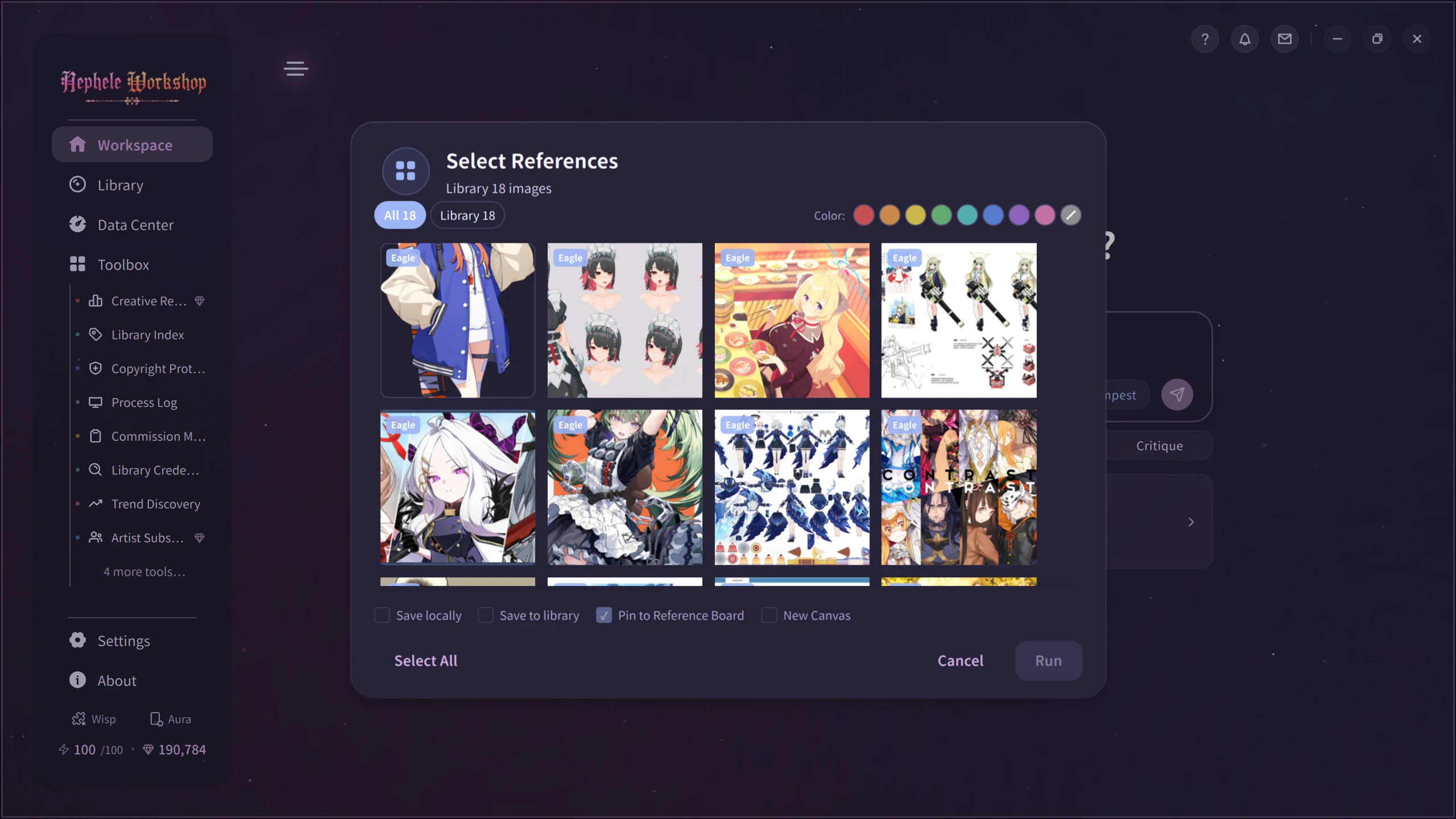
2. Finding reference images
Type something like "find me some Hatsune Miku reference images on Pixiv," and Nephele searches Pixiv, filters out a well-matched set, and pops up a picker.
This demo is good for seeing the everyday inspiration workflow: you only give keywords, and Nephele handles finding, filtering, and displaying — after which you can keep asking it to find similar ones, switch platforms, or refine the keywords.
Related docs: Finding References, Reference Board & 3D Preview, Library Index.
Tip
After the demo, go back to the workspace and try once with your own keywords or image. That's an easier way to understand how Nephele works than reading the feature list first.
FAQ
Q: Can I use it offline?
The first launch and login require a connection. After verification, the app caches license info and supports an offline grace period of up to 3 days. Local tools (library indexing, tagging, Find Similar, semantic search, watermarking, certification, file operations) run on embedded local AI models and work offline; only natural-language conversation with Nephele, account verification, and update checks need a connection.
Q: How much can I do without cloud AI?
The vast majority. Nephele embeds several local AI models (PixAI Tagger for tagging, EVA02 for Find Similar, multilingual semantic retrieval, AI-credential detection, etc.) — tagging, indexing, image search, semantic retrieval, watermarking, certification, rights protection, and file processing all run on your machine and work offline. What needs a connection is mainly the Agent capabilities: natural-language conversation with Nephele (having it plan tasks, call tools, search the web).
Q: Why is the first launch slow?
The first launch initializes the QML components and the browser engine. The AI image models are lazy-loaded — they only download or load the first time you use auto-tagging, similar-image search, or semantic retrieval.
Q: What if the app crashes or shows a white screen?
Update your GPU driver first. If that doesn't help, submit diagnostics from Self-check & Feedback, or email [email protected].
Next steps
- Feature Overview — see which illustration workflows Nephele covers
- Talking to Nephele — learn how to give the Agent instructions
- Pricing & Payment — trial, license, cloud credits, and refund rules
- How I handle your data — privacy, telemetry, and data boundaries
- Security Overview — the full chain of certification, invisible watermark, reverse search, and evidence